Gettin’ Nerdy with Apple Music’s Smart Playlists
If you’ve used iTunes and Apple Music for years, and you’ve amassed thousands (or even tens of thousands) of tunes in your collection, then this one’s for you. I’ve put this together as a public service for those of you who haven’t yet unleashed the customized coolness of Apple Music’s Smart Playlist feature.
To this day, I still dabble in different music apps, jumping from Tidal to Spotify to Deezer to Amazon Music, etc etc. But throughout these 2000’s, I’ve held on tight to my music collection in Apple Music, which includes my treasured MP3 collection and everything I’ve added since.
Today’s song count in my Apple Music library is 26,755. That’s a lot of tunes, and I’m sure many of you exceed that by leaps and bounds. Shuffling them all is cool, sure, but why not get nerdy and use Smart Playlists to rediscover and highlight some of those tunes you’ve added along the way?
Here are 5 of my essential Smart Playlists
The screenshots below are from my Mac desktop’s Apple Music app, spring of 2026. You’ll need to use the desktop version to create and edit them, but you can enjoy them anywhere – smartphone, Apple TV, or wherever you can play Apple Music.
To create a Smart Playlist in Apple Music, click File > New > Smart Playlist. Then, follow along below to add what you like!
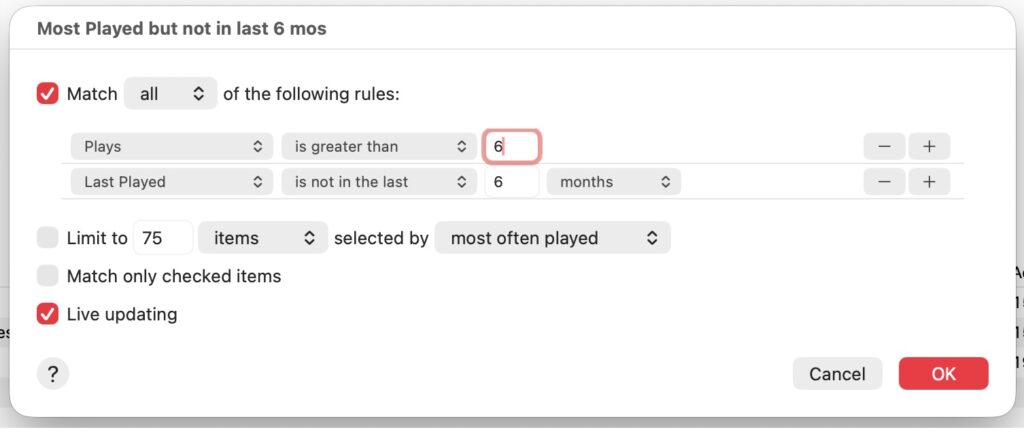
5. Most Played but not in Last 6 Months
It’s crazy how quickly time flies, and this playlist highlights those great tunes you’ve played a lot, but somehow 6 months have passed and doggone if you haven’t played it!
Smart Playlist rules:
- Match All of the Following Rules is checked/selected.
- Plays is greater than 6 (or whatever number you desire).
- Last Played is not in the last 6 months.
- Live Updating is selected.
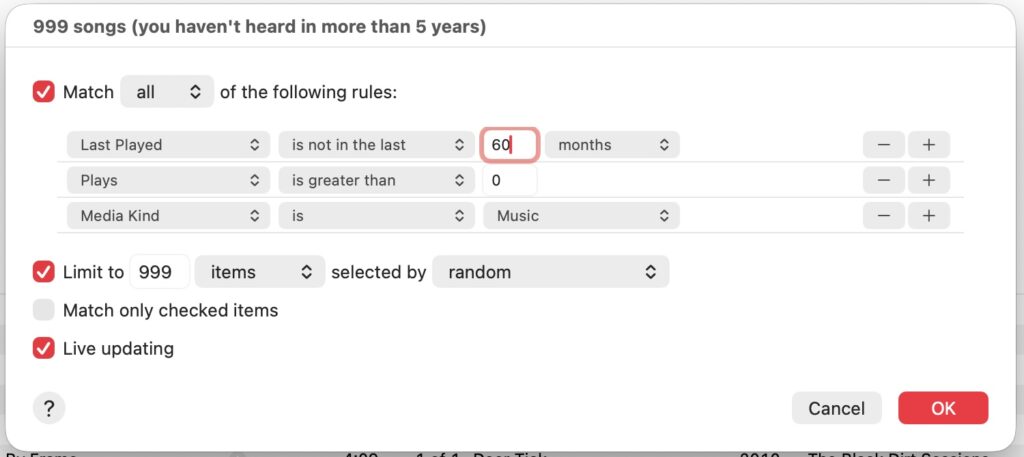
4. 999 Songs (you haven’t heard in more than 5 years)
Speaking of ‘how time flies’ – this one will depend on how long you’ve had your Apple Music library going, but if it’s been years, this a great playlist to bring back the forgotten ones. This looks for any songs you’ve played once or more, but not in the last 5 years.
Smart Playlist Rules:
- Match All of the Following Rules is checked/selected.
- Last Played is not in the last 60 months.
- Plays is greater than 0.
- Media Kind is Music (helpful if you have videos or other media in your library).
- Limit to 999 items selected by random.
- Live Updating is selected.
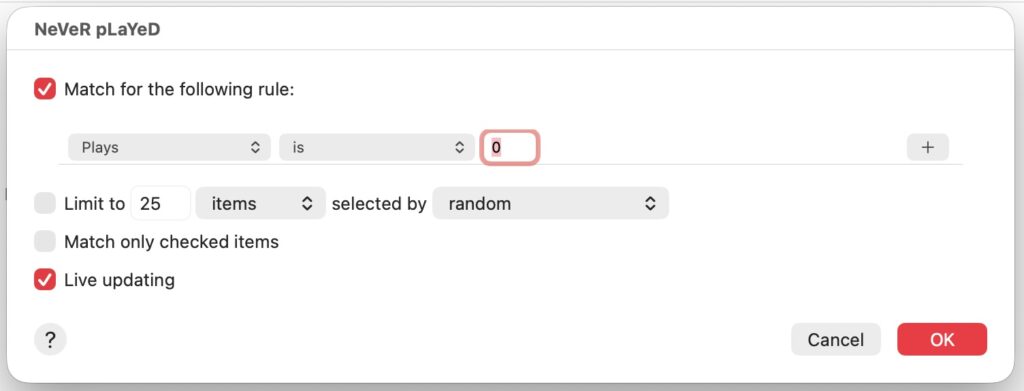
3. Never Played
Simple, but very handy if you add a lot of music to your collection. This one’s great for newly released music you want to listen to. Add to your library, and it will be here waiting for you.
Smart Playlist Rules:
- Match All of the Following Rules is checked/selected.
- Plays is 0.
- Live Updating is selected.
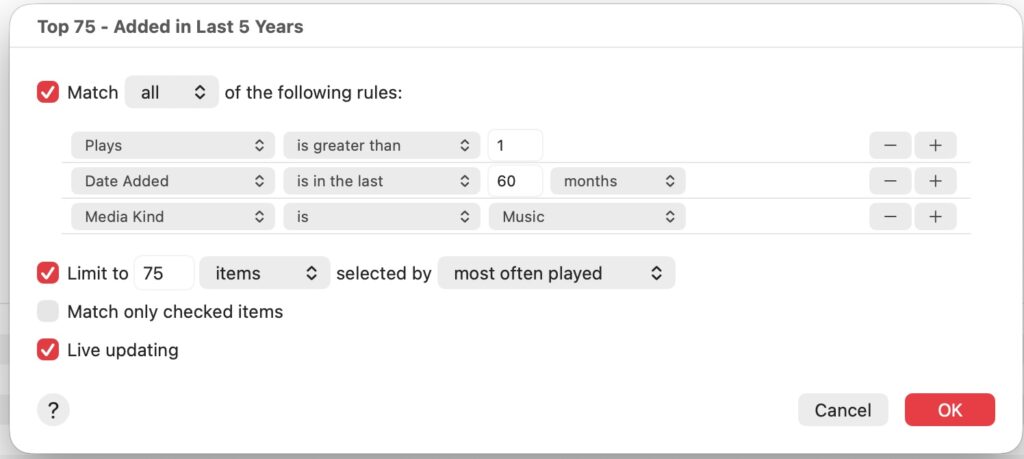
2. Top 75 Added in Last 5 Years
You’ve added a lot tunes over the last 5 years. What songs rise to the top? (I chose 75 in the last 5 years because I also created Top 50 in the Last 2 Years, Top 100 in the Last 10 Years and Top 200 Overall).
Smart Playlist Rules:
- Match All of the Following Rules is checked/selected.
- Plays is greater than 1.
- Date Added is in the last 60 months.
- Media Kind is Music.
- Limit to 75 items selected by random.
- Live Updating is selected.
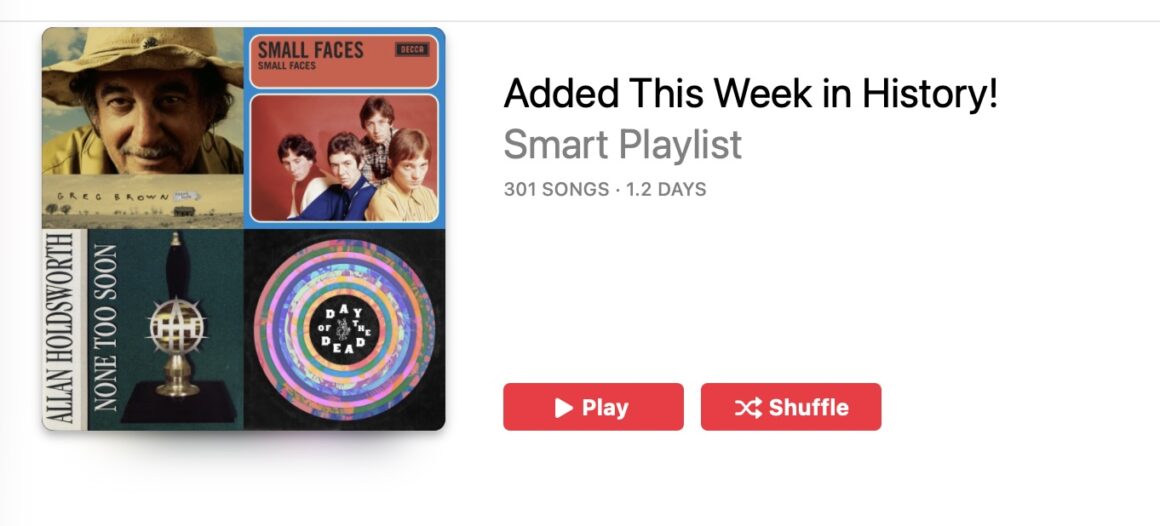
1. Added This Week In History!
Okay, I know this looks insane – and it does take a few minutes to set up, but I’m telling you it’s worth it! Our music listening and collection habits can have a seasonal, timely quality to it. Certain times of the year bring certain vibes, and I find it super interesting to dig into this playlist and hear what I added during this current week in years past.
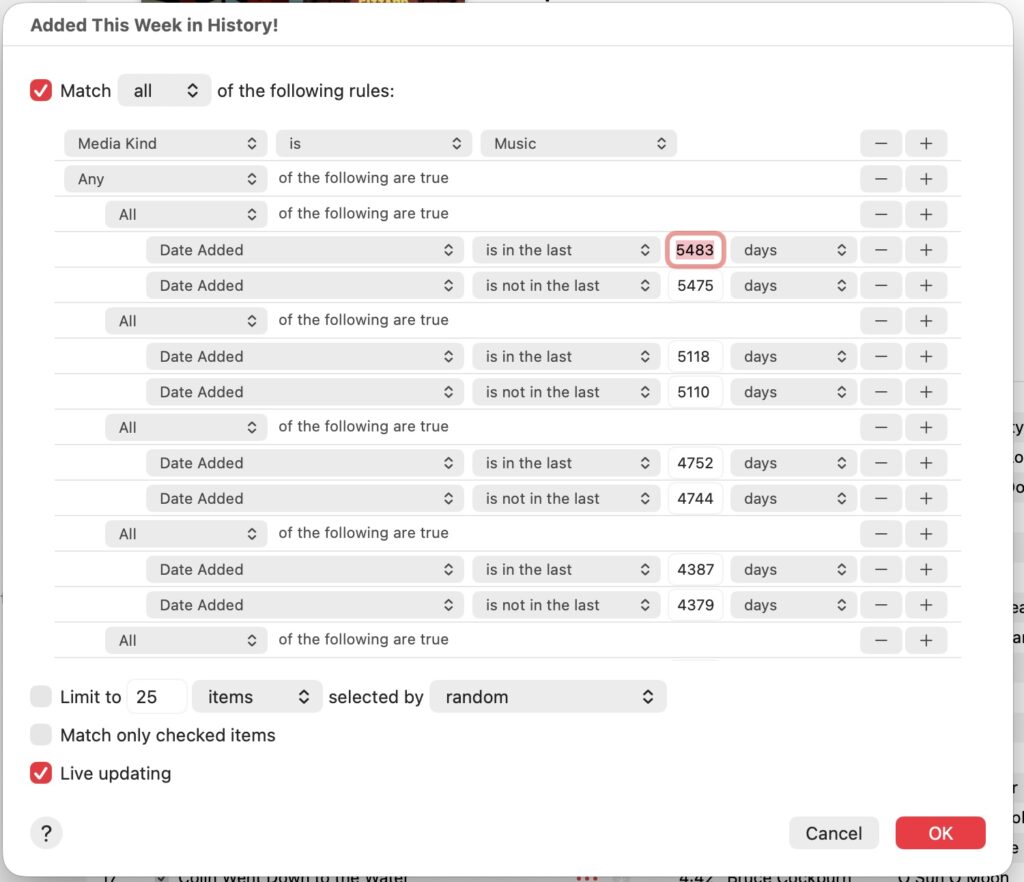
You’ll need to create “nested” rules, which looks like below – where there are rules indented/nested into different sections. Don’t run away, I’ll walk you through it!
Now, see the second row: “Any of the following are true”? On a Mac, hold down the Option key and you’ll see the + sign on the far right of that row turn into an ellipse. Click it to get a new nested row. You’ll keep coming back to that same row to add a new nested rule for each year you want to go back. (On a Windows keyboard, the Alt key should do the same thing).
Smart Playlist Rules:
- Match All of the Following Rules is checked/selected.
- Media Kind is Music.
- Any of the following are true (add a nested row – Option key + ellipse.)
- All of the following are true.
- The nested row below that should be changed to Date Added.
- Date Added is in the last 368 days.
- Date Added is not in the last 361 days.
- On row 2 – “Any of the following are true”, add a nested row (Option + ellipse).
- All of the following are true.
- The nested row below that should be changed to Date Added.
- Date Added is in the last 734 days.
- Date Added is not in the last 726 days.
- Repeat those step for the number of years you want to go back. I’m a maniac and went back 15 years.
- Here are the week ranges for all of those years (1 and 2 years back is shown above):
- 1 year: is in 368 / is not in 361
- 2 years: 734 / 726
- 3 years: 1099 / 1091
- 4 years: 1464 / 1456
- 5 years: 1830 / 1822
- 6 years: 2195 / 2187
- 7 years: 2561 / 2553
- 8 years: 2926 / 2918
- 9 years: 3291 / 3283
- 10 years: 3657 / 3649
- 11 years: 4022 / 4014
- 12 years: 4387 / 4379
- 13 years: 4752 / 4744
- 14 years: 5118 / 5110
- 15 years: 5483 / 5475
- Live Updating is selected.
This should give you a fresh perspective on your music library. I’m rediscovering all sorts of music these days through these Smart Playlists.
If any of you have other good Smart Playlists to share, tips, tricks, or whatever, I’d love to hear your thoughts. Happy Listening!
